Mostrando entradas con la etiqueta learning. Mostrar todas las entradas

viernes, 21 de mayo de 2021

11 YEARS! 11 Lessons I Got from Linux

 Today, this humble blog is celebrating its 11th anniversary.


 That also means that I have been using Linux for more than eleven years!

All this time in company of Tux has taught me many lessons. These are eleven of of them:

1- One can survive quite a long time on Linux without being a CLI expert.

2- With Linux, there is always more than a way to do the job. If you don't find it, you just need to keep searching.

3- With great power comes great responsibility!

4- Communities vary. So their ways.

5- Security is at the user's hands. You cannot resign that responsibility.

6- There are lots of ways to contribute with your favorite distro / free software project. All of us can contribute in some way.

7- Linux gets better and better each year.

8- Distros come and go. However, their contributions stay.

9- Experimentation with one's system teaches a lot.

10- Some people simply won't understand the value of free software even if they are using it on a daily basis.

11- Using a computer can truly become a pleasant experience. You do not have to pay lots of money for that.

Those are eleven of the many lessons the friendly penguin has taught me.

Happy anniversary, Linuxmigrante!!

sábado, 25 de enero de 2020

A New Year with New Learning!

This was my first attempt.


2020 has started and I have taken Santiago's advice to use Inkscape. He commented on my blog when I mentioned my experiments with GIMP.


At first, I didn't get very far.  All I got after trying like crazy was a weird humanoid image.


Still, I didn't get up. I had learned the basics of vector images by trying to give shape to that odd creature.


Later, I could get something a bit better. I aimed at
drawing one of the images that I can do easily by hand: a cat!

To simplify my life, I chose the rear view.  This is what I got:

A cat ignoring me!

Then, I started drawing all sorts of things. Of course, my drawings look more like cartoonized versions of everything, but that's OK.  I am glad to say I learned something new!


sábado, 13 de octubre de 2018

To Everything Turn, Turn, Turn!

After a quick glance to Twine, I started looking for a way to make a book with a flipping page effect.  Some apps to do that are quite expensive!

Finally, I found one that is free and seems very flexible: Turn.

Turn is a small and powerful Javascript library that works with jQuery.

After some experimentation with it, I've managed to make something basic, but useful.


Let's see if I can learn how to use its many features.

martes, 20 de diciembre de 2016

MX-16: Persistence and Frugality could Bite...

I made a MX-16 (64 bit) bootable USB pendrive to test it.

MX gets better and better!  Since I was swamped with work at the time of the development, I could not help much with testing or translating.

Unfortunately, the translation in my language has evident errors and needs more polishing, but that is not a show stopper, is it?

MX has actually gone a long way from the way its first release (MX-14) was.  I am amazed at the growing collection of handy tools its new MX comes with.  The devs are indeed working hard to simplify tasks without dumbing the distro down.  I do appreciate that!

The first big change I noticed was the GRUB Menu.  Before, I had to press F2 to change the language and the timezone.  Thus, I pressed F2 when I saw the menu... but nothing happened.  I went to advanced settings but there was nothing there about locales.

Thus, I booted the distro in English.  Checked the manual and it did say that you had to press F2.  I guess there was a change that the documentation team could not have ready for the release.  Or maybe I did something wrong.

To try again, I restarted the laptop.  No, F2 didn't do anything. Wondering what to do next, I realized there was another booting option for personalizing the boot up.  I tried that one and bingo!  There I found the options to change language and time zones.

But then, I was asked about persistence and frugality.

I had a vague idea of what persistence is, but frugal installs were to me the same as an amargasaurus: I had no idea what they were!  :P

Still, the options looked quite tempting.  Trying to be witty, I chose the options that looked less dangerous to me.  After all, I was not going to install anything yet.

The distro booted and I played with it to my heart's content.  After that, I turned off the laptop and removed the pendrive.

This guy could have helped me!
My surprise was when I turned the laptop on again.  As soon as GRUB2 loaded, I was welcomed by a loud beeping and the bootloader took a long time to start.  That happened every time I turned the machine on, but the beeping was shortened by pressing F2 or enter, apparently.  Booting with the pendrive did not cause the obnoxious sound.

After repairing GRUB, messing with its files, reinstalling it, googling for possible solutions, and forum checking to no avail, I decided to boot the pendrive and hitting "e" to edit the booting options.  Then, I removed the part of persistence.

That took care of the problem.  Boy!  What a relief! :P

Next time, I'll do my homework before acting cocky.  After all, I am an eternal newbie in the world of Linux!

By the way, for those of you who wish to know more about persistence and frugal installs, here you have some information:

1-  Persistence (courtesy of Pendrivelinux)

2-  Frugal installs (courtesy of Puppy Linux)

sábado, 11 de junio de 2016

How to Make an Ext4 Filesystem with User Permissions

Formatting a partition or a pendrive as Ext4 is quite simple.  However, soon one realizes that it can only be used as root.

But a fellow Linux user named Dolphin Oracle shared these useful tricks on MX forums:

sudo mkfs.ext4 -E root_owner=$UID:$GID /dev/sdXY

where /dev/sdXY should be replaced with /dev/designation_of_partition.


The command above will set as user whoever issued the sudo command. You will still need to mount the device as root, but you may use its files as a regular user.

If you want something a bit different, he also shared this one:

mkfs.ext4 -E root_owner=uid:gid /dev/sdaX

where uid is the user id of whoever you want to be owner (the user created at install will have a UID of 1000).


where gid is the group id of whoever you want to be owner (the user-group created at install will have a GID of 1000).


If you want to mount the devices as a regular user instead of root, you'll have to do this:

paste the contents below into a file called /etc/polkit-1/localauthority/50-local.d/50-udisks.pkla

[udisks]
Identity=unix-group:users
Action=org.freedesktop.udisks*
ResultAny=yes
ResultInactive=no
ResultActive=yes


Reboot and then you should be able to mount the devices as a regular user.

domingo, 29 de mayo de 2016

Setting up a Spanish Keyboard on my Chromebook's Lubuntu

Today I learned this easy and useful trick thanks to Longtom, at PCLOS Forum!

1. Go to Menu > File Tools > File Manager Super User
2. In the address bar type  /etc/xdg/lxsession/LXDE/
3. Open the file “autostart” and add the following :
    setxkbmap -layout "za,us"
4. Save the file, log out and log in

All I had to do was replacing "za" with "es" and that did the trick:

A test sentence: La pequeña niña está dibujando un corazón. 

THANKS A LOT!!!

viernes, 20 de mayo de 2016

It's Been 6 Years Already!

It was 6 years ago when, during a workshop about blogs, this humble account of my experiences with Free Software was born.  After countless problems, I decided to forget about all the knowledge about Windows (funny, I thought it was about computers back then) that I had accumulated in around 15 years and migrated to the land of Tux.

I left my power user status...

I left many of my games and favorite apps...

I left the comfort of warranties and a solid customer support...

All to search for a totally new land.  An unknown world in which, surely enough, I would be a newbie again...

Wait a minute!  I never enjoyed warranties and much less a customer support of any type!  All I got was formatted hard drives thanks to those working in computer shops that were not directly related to Microsoft.

Also, I remember I left a land of viruses, Trojans, beacons, and malware of all possible kinds.

I left a realm of "this cannot be done" and of Blue Screens of Death.

I abandoned a world of constant system checks and paranoia.

And now, after 6 years as a full time Linux user, I can say:

I still don't know most of the command line.

I found excellent apps and my game collection is constantly growing.

I still need the help of those who kindly keep the forums of my distros.

I still get amazed at the advantages of using Linux.

I still have no idea of how to compile my kernel.

I may be a perpetual newbie, but the knowledge I've accumulated in these 6 years doubles that of my 15+ years using Windows.  I'm proud of that!

CHEERS!!!

viernes, 26 de febrero de 2016

Learning from the Hacking of Mint

Recently, Linux Mint experienced a security breach.  What can we learn from it?

1.  Security is always an issue. It doesn't matter what you do, you always have to be alert.

2.  Convenience tends to get in the way of security: the more convenient something is, the less secure it tends to become.

3.  Transparency and honesty are the best way to handle security issues.  Ignoring them or denying them only increases their negative impact (and reduces one's credibility.)

4.  Security cannot be fully automated. A responsible person must always be in charge.  Those who think that automatic face or fingerprint recognition are the best security tools must think who is in charge of programming and calibrating such devices... and how secure the process leading to that automated recognition actually is.  Also, these days it is way easier to steal someone's face with the help of Facebook, latex masks and 3-d printers than stealing a good password.

5.  The person in charge of security must act promptly once security is compromised.  Any delay is unforgivable.

Now, specifically, what measures could other distros take to make their sites safer?  Here are some:

a- Signing the final iso files.
b- Signing checksums.
c- Keeping such signatures in a very secure server.
d- Using HTTPS (SSL).

Those are some thoughts.  Any others will also be welcome.

domingo, 13 de diciembre de 2015

When Linux Education Reaches Teachers: The Case of LekitOS

When talking about effective education, most people think of students as the ones being empowered with knowledge and new skills for creating new paradigms.

I've taken all that with a grain of salt.  Why?  Because I've always thought those who hold that optimistic view often miss something important.  Sometimes they have a too idealized view of students or education, or they do not consider very important variables, or fail to create a methodology according to the target culture, among other possible factors.

For the most part, all the optimistic talk is about students.  But what about teachers?  It is impossible to form free, empowered students if the teachers are slaves.

How are students supposed to become creators of knowledge if their teachers do not create anything?  It's even worse when such teachers are happy by simply recreating patterns (because these teachers have been trained and programmed to think those are the "empowering/liberating" patterns.)

This is more evident in the case of technology in the classrooms.  Most teachers have been literally programmed to think that technology education means using a couple of tools (mostly designed by Microsoft.)  For instance, a teacher who is incapable to say the concept "multimedia presentation" and instead says "Powerpoint" is simply too strongly enslaved to be talking about "empowering, liberating" technology.  For those who think I am exaggerating, let me ask: Why don't teachers say, for example, "OK students, please open your Larousse/Petite Robert" instead of "dictionary"?  How is it that in the case of technology, such metonymy is acceptable?

But today I learned a refreshing piece of news.  Mr. Santiago Camblor, an IT professor at IES Pedro de Tolosa de San Martin de Valdeiglesias, in Madrid, Spain, has become an example of the creative power of truly liberating knowledge in the hands of empowered teachers.  He took GalPon MiniNo Artabros and tailored it into "LekitOS": a version of the distro designed as an OS for high schools. The details are here (in Spanish).

When a teacher is able to do this (and has the tools and freedom to do it), his/her example will be more effective to show students that they can also become free and find the tools they need.  It will also let them create their own knowledge to forge a new paradigm.

To my colleagues in education and education policy-making: Please, try to do the same, especially if you say "Powerpoint" instead of "multimedia presentation" or if you keep mandating your students to use "Word format."

jueves, 12 de noviembre de 2015

Firefox OS for Desktop PCs? WebIDE Makes it Possible!

Long time ago, before Mozilla launched its Firefox OS phones, there was a Firefox OS simulator for your Firefox browser.  I had installed it back then and tested it.  It was fun; indeed, thanks to it, I met Om-Nom, the fun creature of the popular game "Cut the Rope."

Today, when I tried to run the simulator, I got a message that it was outdated and that I should try WebIDE for more up to date versions of Mozilla's phone OS.

I didn't know anything about WebIDE.  It sounded pretty technical to me, who just wanted to run a little game called "Spooky Cats."

Fortunately, Mozilla made WebIDE simple enough for someone like me to understand it and use it...at least to reach my humble goal.

How to use WebIDE?

This is what WebIDE looks like
Basically, on Firefox 33 or later, we must go to the menu "Tools" and then "Web Developer" to select WebIDE.  The shortcut is SHIFT + F8.


Once the WebIDE is open, we must download and install a runtime.  I chose Firefox OS 2.2.  The process was as simple as a click.


The rest is equally simple:  Choose the runtime you installed and run it.

Once I got my Firefox OS simulator, I went straight to the marketplace to locate the game I was looking for.  It was not hard to find it:
This is Firefox OS 2.2 running on my laptop!

Then, I installed it.  That was again extremely simple.

But there was a little problem: the game was meant to work horizontally!

Controlling the game like that was not only awkward but almost impossible, at least for an ocassional gamer like me.

Clicking on the round arrow buttons to move your character was unnatural and hard, not to mention that I also had to resize the phone window to be able to see what was going on.


This seemed pretty much like a no-go...

Until I noticed the little arrow button on the lower right corner of the window.

I clicked on that button and...

Problem solved!  The orientation of the phone screen changed and that also enabled my arrow keys and the space bar on the game.  Now I can play the game on my laptop as easily as it could get.

Some people criticize Mozilla for different reasons and dislike Firefox.  So far, I haven't found a browser that lets you do as many things as Firefox does.

miércoles, 28 de octubre de 2015

Adding Screenlock to PicarOS Diego

This is the method I followed to add the screenlock function to PicarOS Diego 2015.  Since PicarOS uses LXDE, I could find my way to do it.


1. Replacing the Screensaver:
a-  Replace MateScreensaver with Xscreensaver (I used Synaptic for adding Xscreensaver).
b-  Make a file called “Screensaver.desktop” with Leafpad, add this as its content:

[Desktop Entry]
Name=Screensaver
Type=Applicaton
Exec=xscreensaver -nosplash


c-  Set its permissions and make it executable (With right click / properties).
d-  Save the file as root in: /etc/xdg/autostart/  (I used PCManFm as root)
e-  Open the Startmenu (the cat footprint), go to Preferences / Desktop Session Settings, and tick “Screensaver” in the list of the tab “Automatically Started Applications”.
 
2.  Making a Screenlock file:
a-  As root, go to /usr/share/applications and make sure you have the Screenlock.desktop file. If not, make it and add this as its content:


[Desktop Entry]
Type=Application
Name=ScreenLock
Comment=Lock your screen
Icon=system-lock-screen
Categories=Panel;Utility
Exec=lxlock
NoDisplay=false


b-  Set its permissions and make it executable.


3.   Adding Screenlock to the panel:
a- Right click on the panel and choose “panel settings”
b- Choose the tab “Panel Applets”, find the last “Application Launch Bar” from the currently loaded plugins list. Then press the button “Preferences”


c- You must see in the panel to your left the button “Shutdown.” In the list of installed applications to your right, open “Accessories” and look for Screenlock”.
d- Select ScreenLock and press “Add” (from the buttons in the middle) to add it to the panel on your left, where Shutdown is and use the button “up” to move it above Shutdown.
Although the process was pretty long, it was not difficult.  I guess there must be a better way to do it but I'm glad I could find one at least.

martes, 24 de febrero de 2015

MX-14: Playing with Snapshots

At last I ventured into the land of snapshots on my MX-14.3 install, thanks to its MX-Snapshot tool.  This one is so user-friendly that I was able to actually produce a live copy of my system the first time I tried.

The good part is that the snapshot is also installable.  You can make one with your accounts preserved (this one keeps all your configuration) or one with the default accounts (if you want to give copies of the snapshot to other people)

Thus, I decided to experiment a little.  Since XFCE is not precisely my favorite DE, I installed KDE.  After all, a little eye candy won't kill me!


I also installed LXDE.  Pushing my luck a bit more, I installed Compiz and configured it on that DE...

MX's native XFCE gave me more trouble to run Compiz, but I finally got it working...
(And then I realized that I could configure Compiz to use Kwin on XFCE!)  :P

Anyway, I was able to have a copy of my entire system, fully configured, running on a USB thumb drive that I can also use to store data. 

Let's see what else I can learn...


sábado, 16 de agosto de 2014

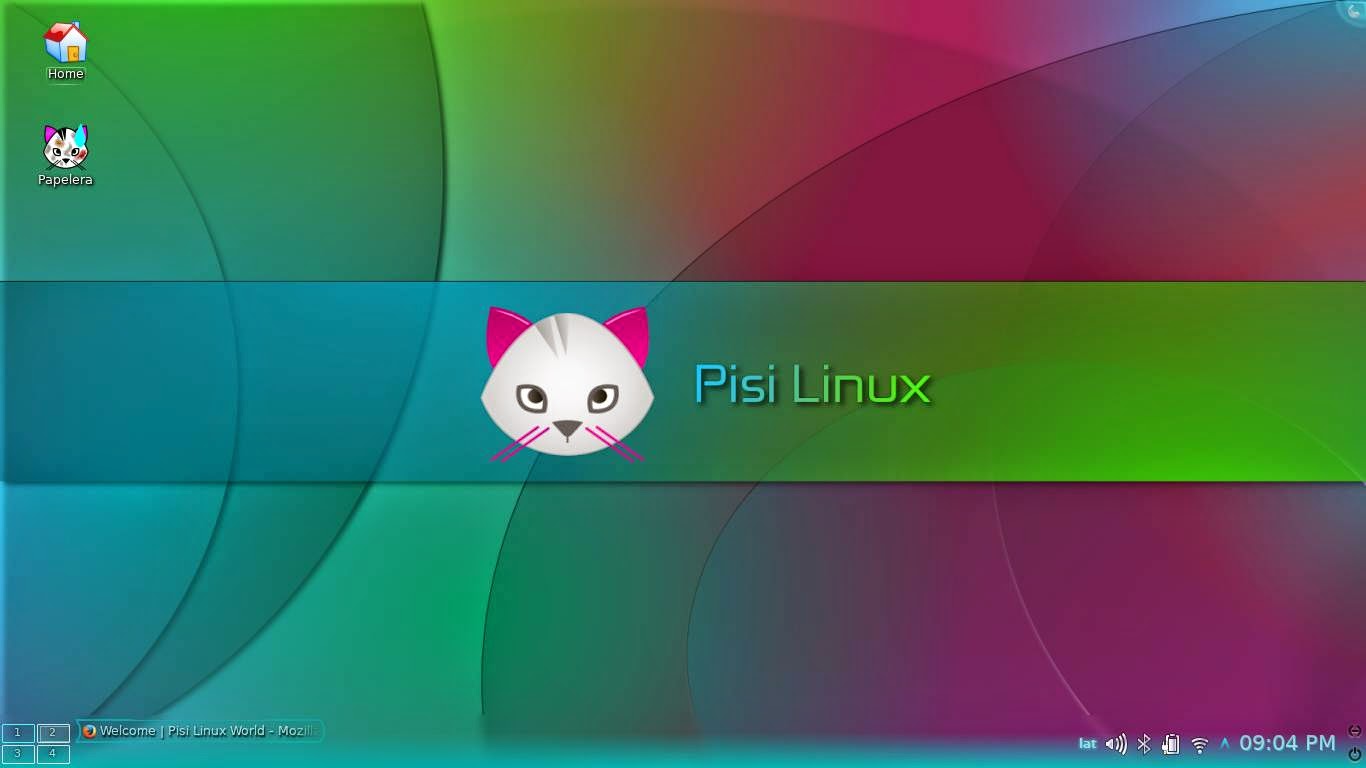
Having Fun with Pisi Linux 1.0

This is my customized desktop with the Ghost theme.
I installed Pisi Linux 1.0 KDE two days ago and I've been exploring and customizing it to my heart's content.  This has been my experience so far:


1.  Yali did not let me use a partition I had prepared previously.  It was necessary to use Yali to delete my partition and create it again for Pisi to start installing on it.  That has happened since my old times with Pardus. 

2. Once installed, Pisi greeted me with a new color at the boot-up.  I like the black background on both GRUB and the booting screens.  The log-in window looks better, too.

3.  Unfortunately, the bug that causes glibc-locales-es not to be installed is still there.  As a result, a Spanish localization throws an "unsupported locale settings" warning and the system ends up being in both English and Spanish.
   The problem can be solved by opening a terminal and typing
    
    sudo pisi ur && sudo pisi it glibc-locales-es

However, unlike with the previous releases, I realized that this time I also needed to manually download kde-l10n-es.  I used the package manager, but that can also be done by entering this in the terminal: 

    sudo pisi ur && sudo pisi it kde-l10n-es

After that, I had to go to system preferences, locale, language, and there I had to set Spanish as my preferred language.  That took care of the problem.

I set a panel as an auto-hiding launcher of my favorite applications
4.  LibreOffice and the other applications have not let me down.  Pisi comes equipped with most of the software I use.  I just had to install VLC and a few games and accessories.  I customized Firefox with a cat theme (and set it to Spanish thanks to the add-on "Language Pack Install Helper 2.5").  I also used the same Firefox theme on LibreOffice.

5.  Now VLC handles sound of .MP4 files better.  Still, some sound funny.  The same goes for .mkv files: there is an improvement but there are still sound glitches that do not occur if I play the files with other applications.

6.  I am very pleased to see that all the KDE glitches I encountered in the previous release are gone!  Now there are no Kwin rendering problems with the desktop cube, nor with the background while rotating the cube.  Also, now my log-in sound works all the time.

 I did notice a small rendering glitch, however.  It happens on the Ghost window decorator when you resize a maximized window: the left and lower left sides of the window glow are incorrectly displayed, but that only lasts until you move your mouse.  This is it:


What about wireless connections?  Mine worked flawlessly from the start.  Youtube videos?  No problem.  Even my bank's page with its annoying plugins (designed for Internet Explorer) works.  I've also plugged it to a TV screen and it has been up to the job

Compared with the testing releases, the final version of Pisi is absolutely an improvement: the system is fast, responsive and very stable.  It is still lacking software (it has  6325 packages at the moment), but it has pretty much what I need, especially if we remember that this distro is made by a very small team.  I will use my Pisi system at work next week and I'll keep having fun with it.  Pisi, in spite of its limitations and all the obstacles that have delayed its release, is truly a little jewel and seems very promising.

domingo, 22 de diciembre de 2013

Getting to Know Android through ZaReason's ZaTab ZT2

I am a proud owner of a ZaReason Alto 4330 laptop.  I really like it and it has worked great during its first year.  I bought it by this time last year.

I learned this year that ZaReason is making a tablet, the ZaTab ZT2.  What caught my attention was that this tablet is easily hackable, unlike others.

I thought this device could teach me about an OS that I've barely touched: Android...and if in the process I learned how to load ROMs or making my own to load them to this tablet, that would be great.

Thus, I bought it.

So far, my experience has been fine.  As I'm not into tablets, I don't know exactly how good or bad this one may be. I think it does not have anything different from other tablets besides its root access (which I haven't been able to figure out.)

Today, after an app installing/uninstalling frenzy, I got the infamous Android bug "the process 'android.process.acore' stopped." I thought I had managed to brick the device and thus set a new computer-breaking record, but (after trying other solutions without success) I found my way to restoring its factory settings. It is working fine now.

That's as far as I have gone with this tablet.  Now I'm getting to learn about Android.
ZaTab ZT2 (photo from zareason.com)

viernes, 15 de noviembre de 2013

Taking Linux for Children to a Higher Level: PicarOS 2013 Diego

If you are into education or simply want to give to your kids the chance to have a computer with an OS designed with their learning and fun in mind, you must give PicarOS 2013 "Diego" a try.

I had already described PicarOS here.  I remember how impressed I was with this little project based on GalPon MiniNO.  I was so impressed that I ended up installing that system on my laptop and have used it regularly ever since.  Any time someone sees it, they ask me what that beautiful "program" is.  I have installed it on 3 different computers, too.

But some days ago, my brother let me know that PicarOS had undergone a major overhaul.  PicarOS 2013, codenamed "Diego", took the tradition of beauty and functionality of PicarOS to a whole new level.


Yes, visually speaking, PicarOS is a winner!  Just show it to a child and you'll see the favorable reaction this system causes in the little ones. 
If that is not enough, Diego comes with Compiz preinstalled.  Thus, if your video card is 3d-capable and you choose to activate desktop effects, you will have even more eye candy to dazzle your kids: wobbly windows, desktop grids, fire writing on the desktop--you name it!

Please, pay attention to the window buttons: a spider for closing windows, a worm to minimize, and a butterfly to maximize.  Yes, and they are animated!

Let's also remember that this OS does not patronize kids: it is a fully featured productivity system.  Diego may be cute, but more than that, it is complete with software that adults may also use daily.  As I said before, I carry out my work regularly with the help of this OS.

If you are still not convinced, please take a look at this video and see it for yourself:

What's next?  Downloading it and testing it, of course! Since MiniNO PicarOS 2013 works also as a live DVD, you can use it without installing it or changing anything to your regular OS!  You can find it here.  I already installed it and noticed several improvements in comparison to its previous version.

Can you imagine how much children could benefit if all schools had this incredible OS installed in their computer labs?

lunes, 1 de julio de 2013

Working on Pisi: Display and GRUB 2

Since I installed Pisi Linux Beta 2, I've been using it steadily.  So far, I haven't experienced any crashes.  That's great!  I also installed the updates (quite a few, indeed) that my system showed.

Now, let's go back in time.  My Pisi system had a minor problem.  It was that whenever I plugged in a multimedia projector, it was recognized as a separate monitor, causing a double display; one was on the wall and the other on my screen.  Not a big deal; I could adjust the view from KDE System Preferences.  Easy.

Let's go back in time a bit more.  During my Windows times, lots of updates often caused system instability and problems.  I still remember when a system update literally ate my XP laptop, back in 2004-2005.  Not even the DVD drive survived! (Yes, it was an original, authentic, legal, pure XP install!)

Thus, having such a lot of updates for a beta system made me remember that painful experience...and others as well.

Interestingly enough, I didn't notice anything new after the update.  Pisi kept running, playing, working, and purring as it did when I first installed it.

Last Saturday, I decided to take Pisi to my class again.  I wanted to use several presentations with my students.  Due to the forgetfulness of the person in charge of the equipment, I got my projector late and couldn't test it before class.  No big deal; I knew how Pisi behaved and got myself ready to adjust the display settings with KDE.

But Pisi had another idea.  The smart kitten decided to pick the projector's signal and adjust it all by himself.  Wow! The updates did have an effect, and a good one!  My class went well.  Pisi did its work excellently.  I LOVE GNU/LINUX!!

The only thing left to be fully comfortable with Pisi, in my case, was GRUB 2. You see, although I was impressed by the elegance and beauty of Pisi's GRUB, there was still an issue that bothered me: some of my other Debian-based distros were shown in the menu as simply "Debian."  Since I have 3 that were presented like that, choosing them at bootup was more like trial and error.

I tried the tool for editing GRUB 2 that comes with Pisi.  No, it does not have an option to change menu entries.  Also, I am barely learning to use GRUB 2, so I had no idea how to edit them without an editing tool (I know how to use Grub Customizer, for example).  I tried to read here and there, but didn't find a newbie-friendly way to achieve my goal.

What did I do?  Well, I went to Pisi Linux World Forum and posted my question at night, right before going to sleep. Maybe someone more experienced would be willing to help me...

That was exactly what happened. The following morning, a fellow Pisi user had posted a very simple method to guide me through:

you can edit grub2.cfg (located under /boot/grub2/grub.cfg) as root. to do that, right click this file and choose root actions > open with text editor. enter your root password. find the debian menu entry and write what you want in the distro name area ' distro_name ' (the bold text in example) and save it.

example:
 

before changes
### BEGIN /etc/grub.d/10_linux ###

menuentry 'Pisi GNU/Linux' --class pisi --c.........
 

after changes
### BEGIN /etc/grub.d/10_linux ###
menuentry 'Pisi Linux Beta Sueno' --class pisi --c.........


And that did it!  That was as simple to edit as it was in GRUB 1 (or maybe more!)

Now I can say I am fully satisfied with my Pisi system, even if it is a beta.  Kudos to Pisi developers and community for this well-made little distro!
 

lunes, 25 de febrero de 2013

Some Thoughts on Learning, Freedom, and Operating Systems

Yesterday, after reading a novel, I decided to update my Pardus 2013 test system.  Well, it was more like an upgrade because I had Pardus 2012 Rc1 installed.  There were about 1GB of updates waiting to be done, so I started killing time while the updates got downloaded and installed.

First, I played some simple games.  Digger and Connectagram kept me active for the first 30 minutes.  While thinking to get my words right in Connectagram, I realized that I was doing something I had never dared to do during my Windows times.

You see, when Windows was downloading updates or patches, using the OS was out of the question.  Actually, that happened to my French teacher two days ago: she wanted to use the lab's PC, but was greeted by the unfortunate "Windows is installing updates" message.  It was 25 updates in total...and, according to the message, she should not stop the process nor turn off the computer until full completion.  She had to go to Plan B until Windows decided it was time for her to use the computer.  Unbelievable!!!

I must say I felt so free!  See, unlike my professor, who was running--or, better said, intended to run--a fully finished, commercial product, I was running a test system.  However, this Pardus (which is almost officially dead) is so stable that I don't mind using it as a production system.  While my OS carried on with its updates, I could go on with my normal tasks.  It is great to have an OS that does not restrain you!

When I finished playing, I dedicated some minutes to see the progress of the updates.  Again, I realized something.  I realized I have learned a great deal since my Windows days.  Now I understand a bit more about the different processes and components of my OS.  Of course, I am still far from being an expert, but I was glad to understand some of what was going on.

That made me think about Windows 8.  Now, fans of the newest Redmond's OS are using the same idea Linux users knew for years.  Windows 8 fans, when talking about Metro interface (I refuse to call that "Modern" because it is NOT!), say: "Windows 8 is good if you are willing to learn something new.

Oh, boy!  After so many years of telling people "why should you learn anything new with Linux? Better keep using Windows," these people are talking like Linux users at last! That's funny!

What's not funny is the unwillingness of many users to learn something new. Windows strategies over the years created a monster that now is giving their creators horrible headaches: most Windows users don't want to learn about their OS, and that's a fact. MS developers should have thought about that when trying to implement Metro so hastily.  That will also be true for Windows Blue and its rapid release ideology (another element from Linux that Windows fans loved to criticize!)

Microsoft, remember: Your users don't want to learn and hate change.  That's how you made them.  Forcing them into your new models might not be a good idea...

And to Windows users out there, good luck because a bumpy ride comes ahead!

I am glad I learned to be free!

viernes, 14 de diciembre de 2012

My Work is Done...Let the Fun Start!

I've been away of this blog for quite a long time.  Of course, the reason has nothing to do with viruses or computer malfunctioning...quite the opposite: my systems have been more reliable and productive than ever!

In fact, what kept me away from entering my experiences here was the intensity of the work I had to do.  Well, my graduation was also part of it.

By the way, I can say that my graduation serves as an example of the inaccuracy of all the arguments claiming that GNU/Linux is unprofessional software: everything, from online research to multimedia presentation design and my thesis writing, all was done using open source software exclusively.  Mepis Linux was my OS, Libre Office was my office suite, Firefox was my browser...I even used Kolourpaint for simple image editing!  Symbolically speaking, my Master's Degree has the Free Software stamp on it!  How come people say you cannot use Linux for serious tasks?  I have to disagree with them on the basis of my own experience.

What about my work?  There was an International Congress at my university and both my brother Mechatotoro and I had two lectures to present.  I thought about using Platinum Arts Sandbox (a 3D engine for games) instead of Impress to manage the visual aids this time.  Why?  Just for a little variety and a lot of experimentation!

                           These are captures of the presentation about Cruelty and Plays:


Since my knowledge about 3D designing amounts to zero, I had to learn everything from scratch, but I found the process very rewarding and intellectually stimulating (although I am not sure how many of my colleagues will be able to use it).

                    (This is a capture of the presentation about Children's Literature)

With the help of Mechatotoro, who gave me most of the special textures we needed to include in our virtual 3D environments, I set up the presentations.

                  These are more captures of the presentation about Children's Literature:


Apparently, those who attended our lectures were impressed by the innovative visual aids.  To me, that is the biggest reward since I put a lot of time and effort learning about 3D by myself!

And now that the work is done and I am on vacation...LET THE FUN START!
I bought a brand new ALTO 4330 Linux laptop from Zareason.  ( I guess my next entry will be about it!)  Also, I can play with a Toshiba netbook NB515 and a coworker wants me to install Linux on her Toshiba netbook NB-505 because Windows 7 is giving her lots of BSODs...what a surprise!

viernes, 3 de febrero de 2012

Care for a Little Fedora?

Well, I did it! I enrolled in a Linux course online! :)

Of course, the motivation from Mechatotoro helped, hehe!

I'm pretty excited because it is my first formal computer training! Although I've taken online courses before, this will be special, I'm sure!

Apparently, the distribution we will learn about is going to be Fedora.

Hehe! Nice! I got a Fedora CD with a Linux magazine I bought some time ago.

I presented my first homework last week! Soon we will be installing Fedora...

miércoles, 6 de octubre de 2010

Planning to Migrate to Linux? BEWARE!!!


As more noise in favor of GNU/Linux is heard, some people might feel tempted to replace their solid, green-red-blue-and-yellow Windows system with an unknown, shady, black-and-white Linux penguin. Some of these users, thinking they are about to enter the Promised Land, fail to fully consider the disastrous consequences that abandoning the firm, old Windows tradition may cause.

In this light, I found appropriate to let these naive migrants know a number of issues to consider before they take the leap to their doom. These issues are based on empirical, but honest observation and may bring upon me the deepest animosity among GNU/Linux fans...even so, I'm determined to continue. The truth will be by my side.

Dear Windows user, before you migrate to Linux, make sure you understand some of the side-effects that may come after you take your experimental Linux pill:


1. Your computer may become dull or stop working:

Windows is a happy, efficient world where computers respond promptly and just work. They work and work even when you don't know. They work as zombies and botnets, sending spam mail (in the best of the cases) for some hacker out there who rightfully earned control over them. Just last year, there was an estimate of twelve million zombies. That is four times the whole population of a small country like mine. Imagine! A whole country made of zombies!!! That is a happy country! Windows is a happy world in which you (if you're a hacker) command and computers react. They react promptly to Trojans, worms and malware of all forms under the sun. If you install Linux and use it as your main OS, your computer may stop reacting to the Trojans, worms and malware that took cyber-criminals a lot of time and effort to design. Of course, if you engage into irresponsible security behavior, your PC may still be responsive to them, but not as it was with Windows. Are you sure you want a dull computer like that? Who wants a computer that fails to respond to malware by default? What? Your computer has never been part of a botnet, you say? Are you sure? Then, why is it that some users complain that their PCs still download updates regardless of their preferences? They are part of the biggest botnet in the world, that's why!

2. You will be totally unprotected:
Yes. It is not a mistake. Installing Linux will drag you away from computer protection. Windows users are protected by a very strong, fortified system of placebos: the solid support from Microsoft (that usually ignores or denies the problems, but after a considerable number of users complain, gives in and releases the patches), the A/V technologies (that are always playing catch-up with the malware), and Windows Security Essentials (that are pretty similar to A/Vs, but create a much better placebo effect because they come right from Microsoft). In contrast, once you install Linux, the only responsible for your protection will be yourself...and the penguin, that by the way, is armored to its teeth (yes! that bird has teeth and uses them to gnaw malware as fish!) Why would you want to take care of your own security as the Robin of a Bat-penguin if the placebo system will let you relax making you think that it is on charge (even if it isn't)?

3. Your world will go upside down:
Beware! Great danger here! After getting acquainted with Linux, you may discover some awful truths that will make your world shatter like broken Windows. For example, you may discover that you were paying for features Open Source gives you for free! Also, you may realize that some hardware manufacturers innocently make Linux installation and support harder...but who cares? That benefits indirectly our old friend! Your printer or scanner don't work? It is your fault for choosing to install an OS that is not proprietary and therefore has no proprietary drivers. You may then realize a horrible truth: companies don't care about customer satisfaction with their product...they just care about their policies. What's to them that you cannot use your hardware? You bought it already, silly person! You may also realize that all the hardware improvements your OS demanded from you were totally unnecessary. Linux could give life to that old computer you had sitting on a corner collecting dust. Imagine if all those old computers that people sent to the trashcan were still working perfectly...yes...much less pollution and a greener world. Forget the thought. All of us will die anyway, so let's keep littering and let our traditional OS tell us we need to replace our computers when we actually don't need to! That is part of life!

4. Your rights will be severed:

Linux is not just Ubuntu. This is a hard concept to grasp and it might blow your mind. Yes, Windows is Windows regardless if it is 3.11, 95, 98, 2000, ME (Wow! This is such a jewel!), XP, Vista (Another little gem!), or Vista/7. They all are Windows, full of the friendly features you cannot miss (BSODs, system crashes, freezes, etc.). What about Linux? Ubuntu? Naaah! Ubuntu is just ONE Linux flavor and all Linux flavors behave quite differently. With Windows, things are simple: if your Windows doesn't work, you have a dead computer. Simple and nice. With Linux, things are so complicated! If Ubuntu doesn't work, then there is Mandriva. If Mandriva doesn't work, then you could try Mint. No? What about Mepis? What did you say? All of them worked fine but but you don't like them? You can fully customize them as you want. No time for that? Then try Fedora, PCLinuxOS, Debian, OpenSuse, Sabayon, Pardus, Arch, Slackware, Red Hat, Puppy, Knoppix, Elive, Unity...and the list goes on! Why does Linux have to make things so complex? Who wants so many options plus the total freedom to choose? Doesn't that crazy penguin know that it is much better to tell users what they need or want and limit the choices to 5 options most (reducing them progressively, too)? That is the RIGHT way of doing things because your right is to be kept on a nice leash (as your computer, crippled by design, is)! Freedom is for free people and in this happy world being free means being sad...and alone. Therefore, Linux brings sadness! Get Linux, get ready for a very sad life!

I could continue mentioning the dangers of the learning process (remember: learning makes sick brains!) that embracing that obnoxious penguin may also bring about, but I'm done for now. I will just sit down and wait for GNU/Linux fans to start tearing me apart rabidly. Hopefully, dear Windows user, you will think twice before falling for Linux.