

miércoles, 17 de julio de 2013
Happy 20th Birthday, Slackware!!!
Yesterday, the oldest GNU/Linux distribution alive turned 20 years old!
 To all the Slackers out there, CONGRATULATIONS! May Slackware keep running for more and more years!

lunes, 1 de julio de 2013
Working on Pisi: Display and GRUB 2
Since I installed Pisi Linux Beta 2, I've been using it steadily. So far, I haven't experienced any crashes. That's great! I also installed the updates (quite a few, indeed) that my system showed.
Now, let's go back in time. My Pisi system had a minor problem. It was that whenever I plugged in a multimedia projector, it was recognized as a separate monitor, causing a double display; one was on the wall and the other on my screen. Not a big deal; I could adjust the view from KDE System Preferences. Easy.
Let's go back in time a bit more. During my Windows times, lots of updates often caused system instability and problems. I still remember when a system update literally ate my XP laptop, back in 2004-2005. Not even the DVD drive survived! (Yes, it was an original, authentic, legal, pure XP install!)
Thus, having such a lot of updates for a beta system made me remember that painful experience...and others as well.
Interestingly enough, I didn't notice anything new after the update. Pisi kept running, playing, working, and purring as it did when I first installed it.
Last Saturday, I decided to take Pisi to my class again. I wanted to use several presentations with my students. Due to the forgetfulness of the person in charge of the equipment, I got my projector late and couldn't test it before class. No big deal; I knew how Pisi behaved and got myself ready to adjust the display settings with KDE.
But Pisi had another idea. The smart kitten decided to pick the projector's signal and adjust it all by himself. Wow! The updates did have an effect, and a good one! My class went well. Pisi did its work excellently. I LOVE GNU/LINUX!!
The only thing left to be fully comfortable with Pisi, in my case, was GRUB 2. You see, although I was impressed by the elegance and beauty of Pisi's GRUB, there was still an issue that bothered me: some of my other Debian-based distros were shown in the menu as simply "Debian." Since I have 3 that were presented like that, choosing them at bootup was more like trial and error.
I tried the tool for editing GRUB 2 that comes with Pisi. No, it does not have an option to change menu entries. Also, I am barely learning to use GRUB 2, so I had no idea how to edit them without an editing tool (I know how to use Grub Customizer, for example). I tried to read here and there, but didn't find a newbie-friendly way to achieve my goal.
What did I do? Well, I went to Pisi Linux World Forum and posted my question at night, right before going to sleep. Maybe someone more experienced would be willing to help me...
That was exactly what happened. The following morning, a fellow Pisi user had posted a very simple method to guide me through:
you can edit grub2.cfg (located under /boot/grub2/grub.cfg) as root. to do that, right click this file and choose root actions > open with text editor. enter your root password. find the debian menu entry and write what you want in the distro name area ' distro_name ' (the bold text in example) and save it.
example:
before changes
### BEGIN /etc/grub.d/10_linux ###
menuentry 'Pisi GNU/Linux' --class pisi --c.........
after changes
### BEGIN /etc/grub.d/10_linux ###
menuentry 'Pisi Linux Beta Sueno' --class pisi --c.........
And that did it! That was as simple to edit as it was in GRUB 1 (or maybe more!)
Now I can say I am fully satisfied with my Pisi system, even if it is a beta. Kudos to Pisi developers and community for this well-made little distro!
Now, let's go back in time. My Pisi system had a minor problem. It was that whenever I plugged in a multimedia projector, it was recognized as a separate monitor, causing a double display; one was on the wall and the other on my screen. Not a big deal; I could adjust the view from KDE System Preferences. Easy.
Let's go back in time a bit more. During my Windows times, lots of updates often caused system instability and problems. I still remember when a system update literally ate my XP laptop, back in 2004-2005. Not even the DVD drive survived! (Yes, it was an original, authentic, legal, pure XP install!)
Thus, having such a lot of updates for a beta system made me remember that painful experience...and others as well.
Interestingly enough, I didn't notice anything new after the update. Pisi kept running, playing, working, and purring as it did when I first installed it.
Last Saturday, I decided to take Pisi to my class again. I wanted to use several presentations with my students. Due to the forgetfulness of the person in charge of the equipment, I got my projector late and couldn't test it before class. No big deal; I knew how Pisi behaved and got myself ready to adjust the display settings with KDE.
But Pisi had another idea. The smart kitten decided to pick the projector's signal and adjust it all by himself. Wow! The updates did have an effect, and a good one! My class went well. Pisi did its work excellently. I LOVE GNU/LINUX!!
The only thing left to be fully comfortable with Pisi, in my case, was GRUB 2. You see, although I was impressed by the elegance and beauty of Pisi's GRUB, there was still an issue that bothered me: some of my other Debian-based distros were shown in the menu as simply "Debian." Since I have 3 that were presented like that, choosing them at bootup was more like trial and error.
I tried the tool for editing GRUB 2 that comes with Pisi. No, it does not have an option to change menu entries. Also, I am barely learning to use GRUB 2, so I had no idea how to edit them without an editing tool (I know how to use Grub Customizer, for example). I tried to read here and there, but didn't find a newbie-friendly way to achieve my goal.
What did I do? Well, I went to Pisi Linux World Forum and posted my question at night, right before going to sleep. Maybe someone more experienced would be willing to help me...
That was exactly what happened. The following morning, a fellow Pisi user had posted a very simple method to guide me through:
you can edit grub2.cfg (located under /boot/grub2/grub.cfg) as root. to do that, right click this file and choose root actions > open with text editor. enter your root password. find the debian menu entry and write what you want in the distro name area ' distro_name ' (the bold text in example) and save it.
example:
before changes
### BEGIN /etc/grub.d/10_linux ###
menuentry 'Pisi GNU/Linux' --class pisi --c.........
after changes
### BEGIN /etc/grub.d/10_linux ###
menuentry 'Pisi Linux Beta Sueno' --class pisi --c.........
And that did it! That was as simple to edit as it was in GRUB 1 (or maybe more!)
Now I can say I am fully satisfied with my Pisi system, even if it is a beta. Kudos to Pisi developers and community for this well-made little distro!
miércoles, 26 de junio de 2013
Don't Like KDE's Cashew? An Unchalant Way to Take it out of Your Sight!
For some people, KDE 4 is so full of features that is becomes confusing. Among the new features missing in KDE 3 that KDE 4 brought, one that seems to be criticized a lot is the desktop cashew. Yes, that little yellow thing on your upper right corner of your screen:

Currently, this cashew includes text so that users may spot it more easily:

Some people dislike it because it sits on your desktop and they want perfectly clean desktops. Others criticize it because it makes messing things with your desktop much easier. You see, even if you lock your graphic components, any unsuspecting user can easily unlock them from this cashew...and believe me, they will!
Still, others dislike KDE's cashew simply because it's hard to get rid of it. It will be there, all the time, watching over you and reminding you that there are still plenty of KDE features you ignore!
But that's not entirely true. There is a plasmoid especially designed to hide this life-threatening desktop element: Py-cashew!
Unfortunately, Py-cashew did not work for me when I tested it. Thus, I had to learn how to coexist with KDE's "Evil Eye." It's not that bad, really! After a couple of months, you stop noticing it and you don't realize it's there...
That's what I thought, at least.
However, some days ago, I suddenly realized that one of my four virtual desktops was missing its cashew! Unbelievable!
 What happened? True, I was messing with my desktop, but I didn't do anything to the obnoxious cashew! At least that was what I thought...
The answer hit me when I later rotated the desktop cube:

There you have it! I had accidentally dragged my cashew to the lower part of my screen and I had hid it behind my panel!
That means that if you despise the sight of KDE's humble and useful cashew, you may:
1. Open your panel options and choose "autohide."
2. Drag the cashew to the lower right corner of your screen.
3. Open your panel options again and choose "always visible."
4. Lock your graphic elements.
That's it! You won't see it again! An unchalant method to take it out of your sight!
But believe me, there will come a time in which you will miss your cashew! We all do!
Currently, this cashew includes text so that users may spot it more easily:
Some people dislike it because it sits on your desktop and they want perfectly clean desktops. Others criticize it because it makes messing things with your desktop much easier. You see, even if you lock your graphic components, any unsuspecting user can easily unlock them from this cashew...and believe me, they will!
Still, others dislike KDE's cashew simply because it's hard to get rid of it. It will be there, all the time, watching over you and reminding you that there are still plenty of KDE features you ignore!
But that's not entirely true. There is a plasmoid especially designed to hide this life-threatening desktop element: Py-cashew!
Unfortunately, Py-cashew did not work for me when I tested it. Thus, I had to learn how to coexist with KDE's "Evil Eye." It's not that bad, really! After a couple of months, you stop noticing it and you don't realize it's there...
That's what I thought, at least.
However, some days ago, I suddenly realized that one of my four virtual desktops was missing its cashew! Unbelievable!

The answer hit me when I later rotated the desktop cube:

There you have it! I had accidentally dragged my cashew to the lower part of my screen and I had hid it behind my panel!
That means that if you despise the sight of KDE's humble and useful cashew, you may:
1. Open your panel options and choose "autohide."
2. Drag the cashew to the lower right corner of your screen.
3. Open your panel options again and choose "always visible."
4. Lock your graphic elements.
That's it! You won't see it again! An unchalant method to take it out of your sight!
But believe me, there will come a time in which you will miss your cashew! We all do!
miércoles, 19 de junio de 2013
Pisi Linux Beta: A Real-life Test
I waited eagerly for the beta release of Pisi Linux. As soon as it was out, I downloaded it and installed it into a partition my ZaReason's Alto 4330 had.
The installation took about 25 minutes. Once it was over, I noticed a few bugs. For example, Pisi's Grub 2 installed into the MBR, not into the partition I chose. Well, that's not a show stopper to me. Besides, Pisi's Grub is very well designed. Anyway, I booted my brand new Linux kitten to see what it looked like and what it was capable of.
Those who used old-school Pardus will feel familiar with Pisi. Kaptan greets you and lets you choose your first-time settings. Yes, it was great to see Kaptan again!
I checked my Wifi connection first. Pisi picked it without hiccups. Good! Youtube videos also played out of the box.
"Pisi looks solid and feels stable," I said to myself in my office. "Too bad I have to prepare a presentation for my class later. If I had more time, I'd like to test this little distro more seriously," I thought.
Then, another of my crazy ideas struck me. I have made other quite interesting Linux tests in the past. One is here, another is here, and another is here. Now that I see them in retrospective, they seem a bit too risky, but Linux did not let me down then.
"Alright, let's do our work with Pisi today," I decided. First, I needed to create a multimedia presentation. Then, I'd have to use it along with two videos in my class. That would give me a fairly good idea of Pisi's performance in real life.
I must say that entrusting your work to an OS that is not yet finished is a bit too much. Remember: this Pisi release is only for testing; it is not meant for production!
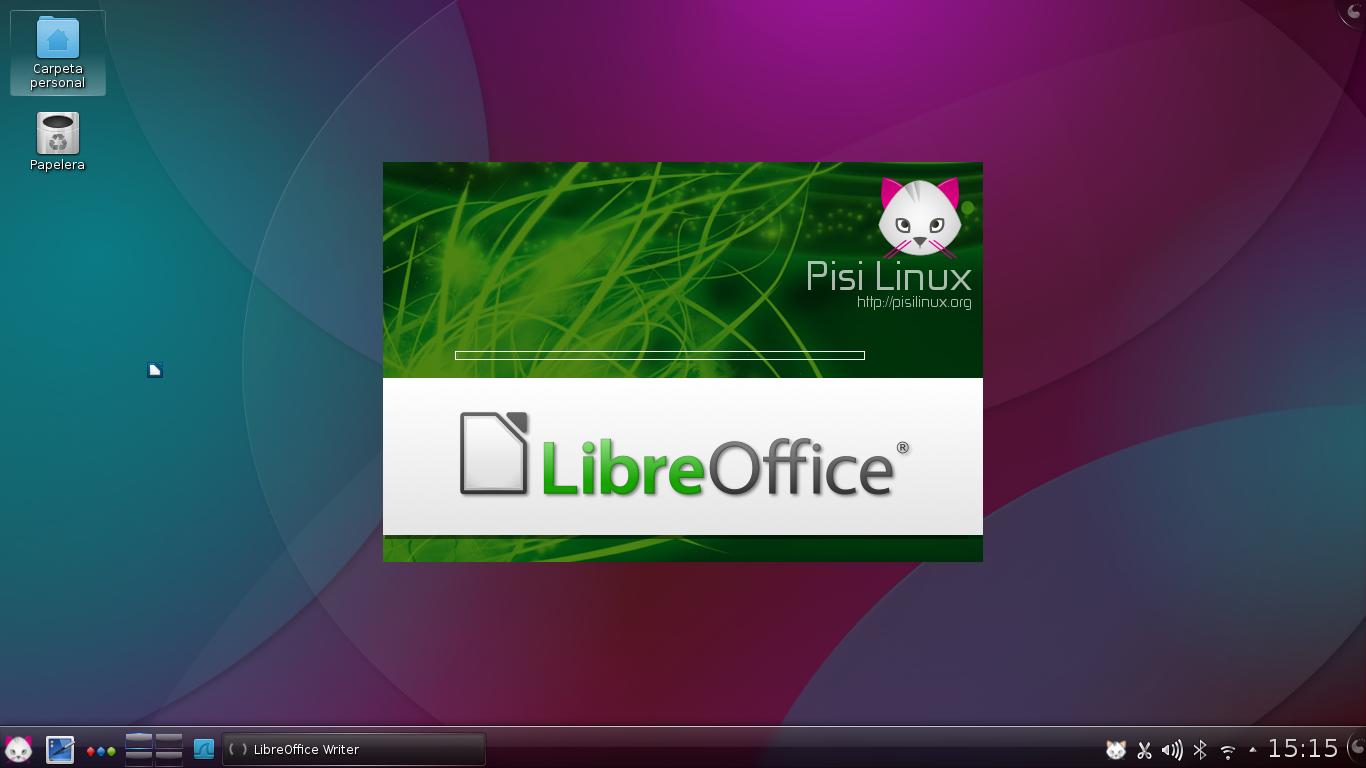
I created my presentation with LibreOffice's Impress. No issues there. Everything worked normally. Actually, the OS theme made me forget I was using a beta release!
 The videos played fine, too. That was great!
However, when I plugged in a multimedia projector to test it before class, I found a rough edge: Pisi thought the projector was another monitor, so it presented a totally different output for it. In other words, my computer's screen had a desktop other than the one the projector displayed.
Fortunately, that was easy to solve: I went to System Preferences / Screen and there I ticked "Unify outputs." That took care of the problem.
I taught my class without any other issue. Not bad for a testing release of a distro that is seeing the sun for the first time! :)
Today, I've spent my whole day using Pisi. I've even managed to customize it a bit! :P
Since Pisi's server is down, I haven't got the chance to check its repositories. That will have to wait for now.
I must say that I'm pretty impressed with Pisi. Congratulations to all those who worked hard to make their dream true with this new distro!
The installation took about 25 minutes. Once it was over, I noticed a few bugs. For example, Pisi's Grub 2 installed into the MBR, not into the partition I chose. Well, that's not a show stopper to me. Besides, Pisi's Grub is very well designed. Anyway, I booted my brand new Linux kitten to see what it looked like and what it was capable of.
Those who used old-school Pardus will feel familiar with Pisi. Kaptan greets you and lets you choose your first-time settings. Yes, it was great to see Kaptan again!
I checked my Wifi connection first. Pisi picked it without hiccups. Good! Youtube videos also played out of the box.
"Pisi looks solid and feels stable," I said to myself in my office. "Too bad I have to prepare a presentation for my class later. If I had more time, I'd like to test this little distro more seriously," I thought.
Then, another of my crazy ideas struck me. I have made other quite interesting Linux tests in the past. One is here, another is here, and another is here. Now that I see them in retrospective, they seem a bit too risky, but Linux did not let me down then.
"Alright, let's do our work with Pisi today," I decided. First, I needed to create a multimedia presentation. Then, I'd have to use it along with two videos in my class. That would give me a fairly good idea of Pisi's performance in real life.
I must say that entrusting your work to an OS that is not yet finished is a bit too much. Remember: this Pisi release is only for testing; it is not meant for production!
I created my presentation with LibreOffice's Impress. No issues there. Everything worked normally. Actually, the OS theme made me forget I was using a beta release!
However, when I plugged in a multimedia projector to test it before class, I found a rough edge: Pisi thought the projector was another monitor, so it presented a totally different output for it. In other words, my computer's screen had a desktop other than the one the projector displayed.
Fortunately, that was easy to solve: I went to System Preferences / Screen and there I ticked "Unify outputs." That took care of the problem.
I taught my class without any other issue. Not bad for a testing release of a distro that is seeing the sun for the first time! :)
Today, I've spent my whole day using Pisi. I've even managed to customize it a bit! :P
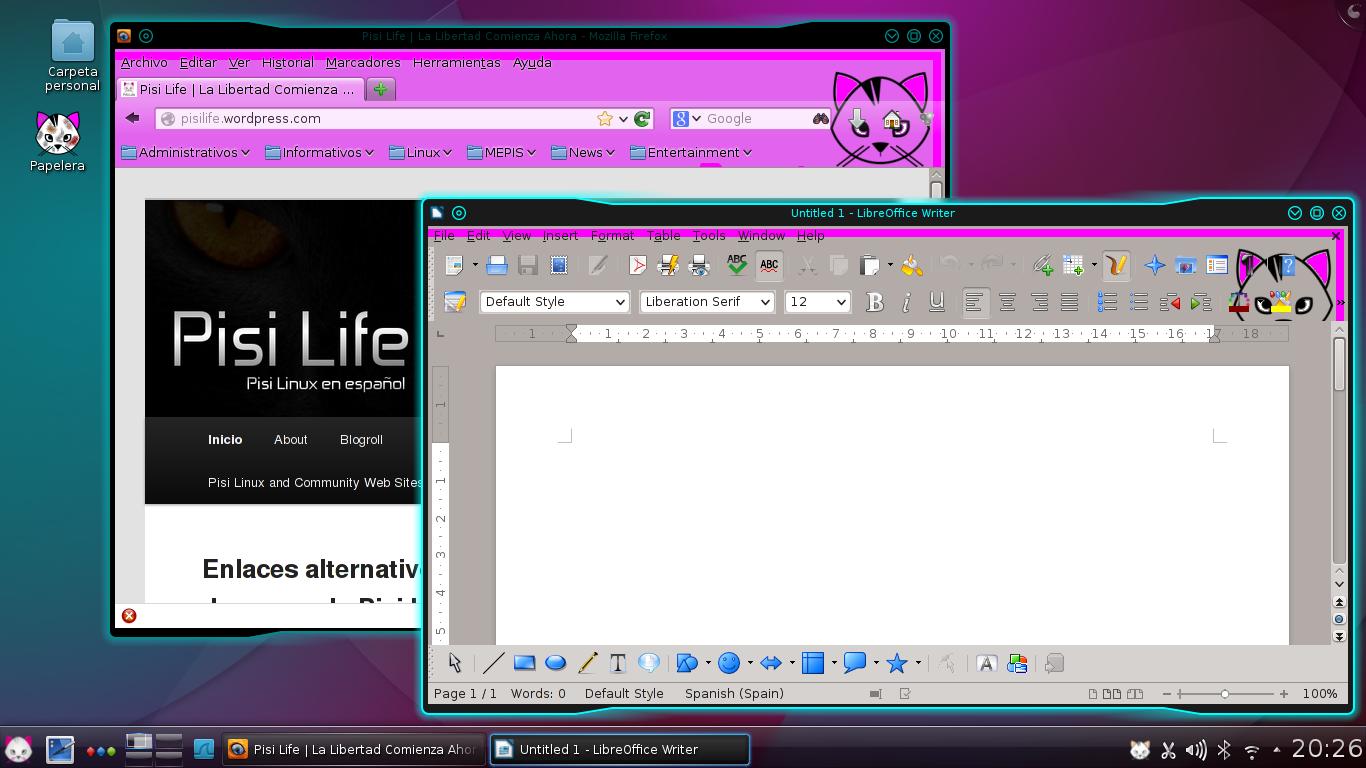 |
| I customized the Recycling Bin, Firefox, LibreOffice, and the theme of my windows |
 |
| This is a cat army! |
I must say that I'm pretty impressed with Pisi. Congratulations to all those who worked hard to make their dream true with this new distro!
lunes, 17 de junio de 2013
A Kitten Named "Sueño": Pisi Linux 1.0 Is about to Release its Beta!
I have a strong reason to be excited this week: Pisi Linux will release its first public beta!
This release has been named "Sueño" (the Spanish word for "Dream") as a token of appreciation to the Spanish members of Pisi's team (Way to go, Yoyo and Sapphire!)
This new distro already has a special place in my heart...and in my computers!

This release has been named "Sueño" (the Spanish word for "Dream") as a token of appreciation to the Spanish members of Pisi's team (Way to go, Yoyo and Sapphire!)
This new distro already has a special place in my heart...and in my computers!

martes, 11 de junio de 2013
Linux Gets Mentioned in "13 Things that Seem Like Scams But Are Actually Really Great"
I was reading Yahoo! Finance and stumbled upon the article "13 Things that Seem Like Scams But Are Actually Really Great". I got surprised when my eyes saw a big Ubuntu logo among the items listed:
 I'd have loved to see a big Tux representing GNU/Linux instead of Ubuntu's logo, but it still feels great to have Linux in this list.
Way to go, Tux!

Way to go, Tux!
jueves, 6 de junio de 2013
Facial Passwords? No, Thanks!
I just finished reading this article here about Google filing a patent for a new facial password technology. Apparently, Google is considering the idea of including this technology into its Android devices.
What's it about? Basically, your device will count with some sort of face recognition software that will serve the purpose of unlocking it. Wait, the new part is that the software will ask you to perform several facial gestures to prove that you are not a photograph.
It may ask you to stick your tongue out, to smile widely, to frown...
Interesting, soon you will see a train full of people who won't show a sign of emotion to each other, but will do it to their phones or tablets! :P
 Now, apart of the silliness involved into making faces to your phone, I still don't see this technology as a security improvement. Are they 100% sure all this effort means a safer way to unlock a device? If it is not, I guess at least it is fun!
Let me ask, what's wrong with passwords anyway? It seems that the trend now is to get away from them. Is it that people are too lazy to remember them? Is it that it is too bothersome to type them?
Hey, passwords are good for your brain!
I prefer those good ol' passwords to these emerging technologies.
What's it about? Basically, your device will count with some sort of face recognition software that will serve the purpose of unlocking it. Wait, the new part is that the software will ask you to perform several facial gestures to prove that you are not a photograph.
It may ask you to stick your tongue out, to smile widely, to frown...
Interesting, soon you will see a train full of people who won't show a sign of emotion to each other, but will do it to their phones or tablets! :P
Now, apart of the silliness involved into making faces to your phone, I still don't see this technology as a security improvement. Are they 100% sure all this effort means a safer way to unlock a device? If it is not, I guess at least it is fun!Let me ask, what's wrong with passwords anyway? It seems that the trend now is to get away from them. Is it that people are too lazy to remember them? Is it that it is too bothersome to type them?
Hey, passwords are good for your brain!
I prefer those good ol' passwords to these emerging technologies.
Suscribirse a:
Entradas (Atom)